CapCut vs InShot Editing Power Effects & Ease Compared in 2026
Table of Contents
What is CapCut & InShot
CapCut is a free mobile video editing app developed by ByteDance. It’s designed for beginners and professional creators who want to make high-quality social media videos. CapCut provides advanced editing tools AI-powered effects templates and multi-track timelines making it ideal for TikTok Instagram Reels and YouTube Shorts.
InShot is a popular video and photo editing app known for its simplicity and user-friendly interface. It is mainly used for trimming clips adding music filters transitions and text making it perfect for casual creators who want quick edits for social media platforms like Instagram TikTok and Facebook.
| Capcut | Inshot |
| Advanced editing tools | Beginner-friendly interface |
| AI-powered features (auto captions, background removal) | Easy trimming, cutting, and merging |
| Multi-track editing | Basic transitions filters and music integration |
| Extensive template library | Free version includes watermark |
| No watermark in free version (some features limited) | Lightweight app works well on older devices |
Key Features of CapCut vs InShot App
CapCut deliver professional editing features for creators who want full control and high-quality output. On other side! InShot keeps editing simple and making it ideal for beginners and users who need quick and clean social-media videos without complexity.
| Feature | CapCut | InShot |
| Ease of Use | Moderate with a slight learning curve due to advanced tools | Very easy to use perfect for beginners |
| Editing Structure | Multi-layer timeline with full creative control | Single-layer focused on quick trimming and basic edits |
| Templates & Effects | Large library of trendy templates, stickers, and effects | Limited templates and basic customization options |
| Animation & Motion | Supports keyframe animations, motion tracking, and advanced visuals | Simple transitions with no advanced motion control |
| AI Features | Auto subtitles, background removal, and intelligent effects | No AI-based editing features |
| Audio & Music | Advanced audio control with layered tracks and beat synchronization | Easy music integration with basic tracks and sound effects |
| Export Quality | Up to 4K resolution, even in the free version without a watermark | Exports up to HD in the free version 4K in the Pro version |
CapCut & Inshort Interface For Biggner
CapCut has a more advanced interface. which might feel overwhelming to beginners. Once you get familiar with its multi-layer editing and AI tools, the process becomes intuitive. Its design makes navigating between advanced features like keyframe animations and audio synchronization relatively easy. For users who want full control over their edits, CapCut offers a robust set of tools and capabilities.
InShot is known for its simplicity. The inshot app drag-and-drop interface makes video editing quick and effortless. You don’t need to have any prior editing experience. InshoT is a great choice for beginners.
CapCut vs InShot Cons & Pros
| CapCut Pros | InShot Pros |
| Advanced editing tools and AI features | Extremely easy to use |
| No watermark in free version | Lightweight, works on older devices |
| Large template library for social media trends | Quick edits for social media |
| High-quality exports, including 4K | Basic features enough for casual creators |
| Frequent updates with new features | Affordable Pro version |
| CapCut Cons | InShot Cons |
| Slightly complex for beginners | Free version includes watermark and ads |
| Large app size, uses more device storage | Limited advanced editing tools |
| Some features restricted to Pro version | Smaller template and effects library |
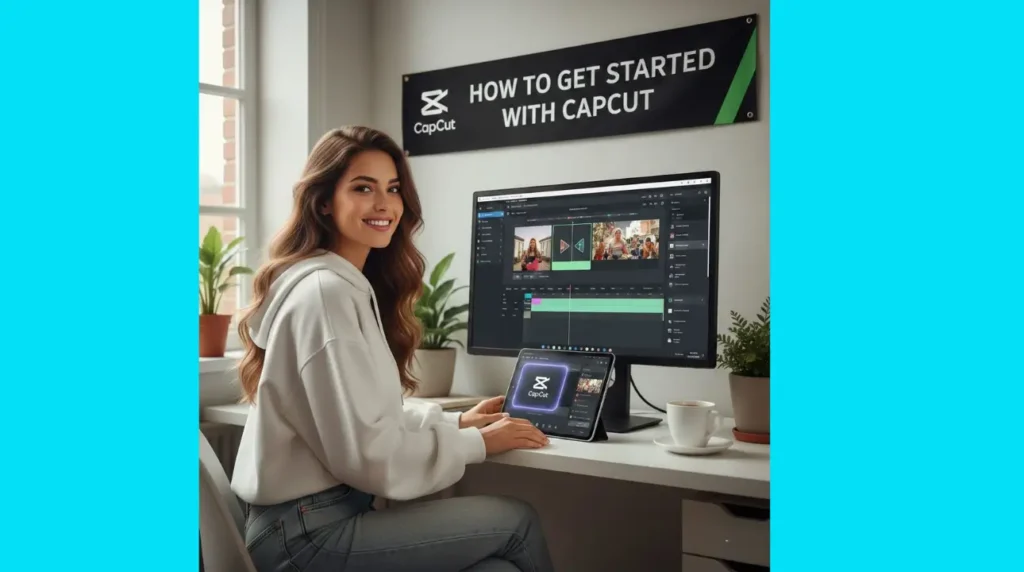
How to Get Started with CapCut
CapCut is a powerful and feature-rich video editing tool. To begin editing your videos with CapCut, follow these simple steps:
How to Get Started with InShot
InShot is ideal for beginners who need a simple editing solution. Here’s how to get started with InShot:
- Download and Install: Find InShot on the Play Store or App Store.
- Start a New Project: Tap the ‘Video’ option to begin.
- Import Clips: Import video clips and photos to the app.
- Basic Edits: Trim clips, add text, music, and filters. Use transitions for smooth flow.
- Export: Export the video in HD or 4K (with the Pro version).
Also Read: CapCut vs KineMaster Best Free Video Editing Apps Compared in 2026
Quick Comparison Table
| Feature | CapCut | InShot |
| Ease of Use | Moderate | Very Easy |
| Templates | Large & trendy | Small |
| Advanced Tools | Yes | No |
| AI Features | Auto captions, background removal | Limited |
| Free Version | No watermark | Watermark present |
| Export Quality | Up to 4K | Up to HD (4K Pro) |
System Requirements Capcut & InShot
Understanding minimum requirements is important because it affects performance speed and stability.
CapCut System Requirements
CapCut is more powerful and richer in features, so it needs a stronger device for smooth performance.
| Platform | Minimum Requirements |
| Android | Android 8.0 or above, 3GB RAM (recommend 4GB+) |
| iOS | iOS 13.0 or above, iPhone 8 / iPad Air 2 or newer |
| Storage | 200+ MB free (varies with assets and projects) |
| Recommended | 4GB RAM / 6GB+ storage for larger projects and faster editing |
Note: On older or low‑end devices, complex projects may lag or crash due to multiple tracks and effects.
InShot System Requirements
InShot is lighter and designed to work well even on basic devices.
| Platform | Minimum Requirements |
| Android | |
| iOS | iOS 12.0 or above |
| Storage | 150+ MB free (varies based on additional items used) |
InShot runs smoothly on both new and older phones. Even devices with 2GB RAM can handle basic video tasks easily.
Pricing & Subscription Plans
CapCut allows multi-layer editing, keyframe animations motion tracking and advanced audio control. InShot is best for trimming adding filters simple transitions and music integration.
| Plan / Tier | CapCut (2026) | InShot (2025-26) |
| Free Version | $0 (basic editing) | $0 (basic editing with watermark) |
| Monthly Subscription | Standard: ~$5.99–$9.99 /moPro: ~$19.99 /mo (full features) | Pro: ~$3.99 /mo |
| Annual Subscription | Standard: ~$89.99/yrPro: ~$179.99/yr | Pro: ~$17.99 /yr |
| Lifetime Plan | No official lifetime plan in base tiers | One-time purchase ~$39.99 / lifetime |
| Remove Ads / One-time | (varies by store) ~ $5.99 | Remove Ads ~$3.99 |
| Add-ons / Effects Packs | Various (price varies) | Various: $1.99–$3.99 per pack |
Frequently Asked Questions
Conclusion
CapCut is best for users who want strong and professional video editing because it offers advanced tools like multi layer editing green screen AI features and high quality 4K export and the free version does not add a watermark which makes it perfect for social media creators and bigger projects while InShot is better for beginners because it is simple light and easy to use for quick edits like cutting videos adding music and using filters but the free version shows ads and adds a watermark which makes it less suitable for professional use.