
CapCut Video Export Problems Android & PC Complete Guide
CapCut video export problems can completely ruin your editing experience. This becomes even more frustrating when your video is ready but refuses to save. Many Android and PC users struggle with exports getting stuck sudden crashes poor quality output or files not appearing after export.
In this complete 2026 guide you will discover the real causes behind these issues. You will also learn practical solutions that actually work. From fixing storage and performance problems to optimizing export settings this guide helps you export videos smoothly without errors or quality loss.
Table of Contents
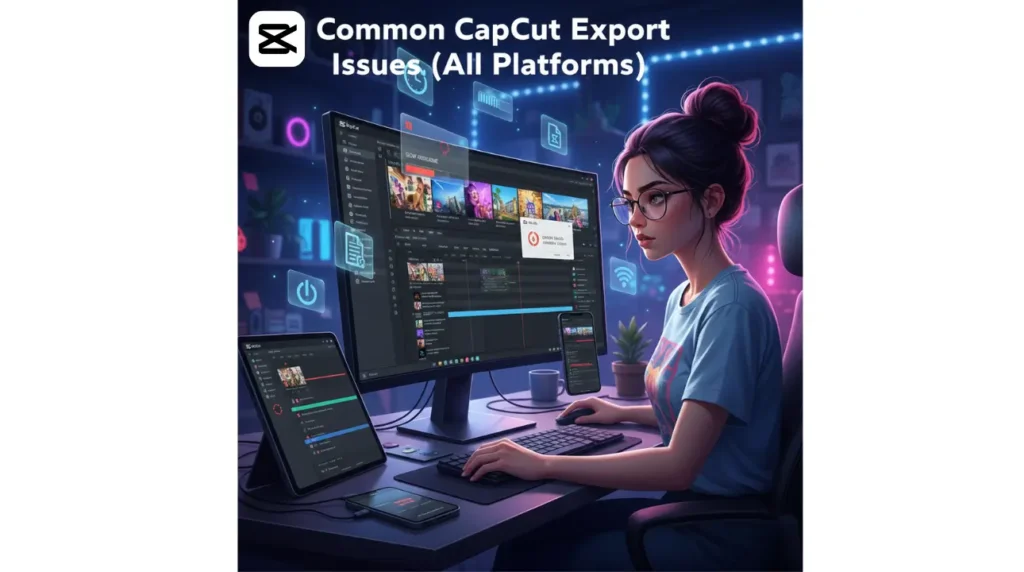
Common CapCut Export Issues (All Platforms)
Before diving into Android and PC-specific issues, here are the most frequent problems users face:
| Problem | Why It Happens | Solution |
| Export Fails | Heavy effects, corrupted project | Reduce effects, duplicate project, update app |
| Export Stuck at 99% | Cloud assets not downloaded, weak internet | Stable internet, download all assets |
| App Crashes | Low RAM, background apps | Close apps, restart device |
| Missing Audio | Unsupported formats, heavy timeline | Use MP3/AAC, simplify timeline |
| Low Video Quality | Wrong resolution/bitrate | Use 1080p, 30fps, medium bitrate |
| Black Screen | Corrupted clips, unsupported format | Re-import clips, MP4 format |
| Slow Export | High resolution, long timeline | Lower resolution, enable GPU (PC) |
| Compatibility Issue | Device OS not matching app | Update CapCut & OS |
Android CapCut Export Issues and Step by Step Solutions
Android devices are very popular for CapCut editing because they are portable and easy to use. However, limited RAM, storage and processing power can lead to common export problems such as slow rendering, app crashes, incomplete video files or error messages during export. Users often struggle to find solutions, which can disrupt their workflow. This guide covers the most frequent issues faced by Android editors and provides simple, step-by-step solutions to fix them. By following these tips, users can optimize their devices, improve export performance and ensure smooth high\ quality video creation on CapCut.
Enable Storage Permissions: Allow CapCut to access storage in device settings. Without this, exported videos won’t appear in the gallery.
Update CapCut: Always use the latest version from the Play Store to fix bugs and improve export performance.
Stable Internet Connection: A weak connection can stop export due to cloud-based assets. Use strong Wi-Fi and download all effects.
Download All Cloud Effects: Make sure all fonts, transitions and effects are fully downloaded before exporting.
Close Background Apps: Free up RAM by closing other apps to prevent crashes during export.
Reduce Heavy Effects: Too many filters or transitions can overload the device. Remove unnecessary effects for smoother exports.
Lower Resolution: Use 1080p and 30fps instead of 4K to reduce export time and prevent crashes.
Restart Device: Restarting clears temporary memory and improves stability during export.
Check Export Settings: Ensure correct resolution, frame rate and bitrate for high-quality output.
Split Long Videos: Split very long projects into smaller parts and export separately.
Retry Export: After applying all fixes, export the video again.
Android Export Issues Table
| Issue | Reason | Solution |
| Export Stuck | Cloud assets not downloaded, weak Wi-Fi | Stable Wi-Fi, download all effects |
| App Crashing | Low RAM, heavy timeline | Close apps, restart device |
| Missing Audio | Unsupported audio format | Use MP3/AAC, simplify timeline |
| Video Not Saving | Storage full or permission denied | Free 3–5 GB, enable permissions |
| Black Screen | Corrupted clips | Re-import clips, MP4 format |
| Slow Export | High resolution, long video | Lower resolution, remove heavy effects |
PC CapCut Export Issues & Step-by-Step Solutions
PC users usually work on larger projects with high resolution and face problems like render failure slow export missing audio black screens and compatibility issues Here are step by step solutions
Check System Requirements
Make sure your PC has enough RAM storage and GPU power to handle your project
Update GPU / Graphics Drivers
Outdated drivers can cause render errors or black screens. Update to the latest version.
Enable GPU Acceleration
Enabling GPU acceleration improves rendering speed and prevents crashes on heavy projects.
Update CapCut
Use the latest version for bug fixes and better export performance.
Ensure Enough Storage
Keep at least 5–10 GB free for long or high-resolution projects.
Remove Unsupported Files
Only use MP4 video and MP3/AAC audio formats.
Lower Resolution
Use 1080p instead of 4K for faster export and fewer errors.
Close Background Programs
Free up RAM by closing other apps running in the background.
Adjust Export Settings
Set 1080p resolution, 30fps, medium bitrate to avoid low-quality output.
Restart PC
Clears temporary memory and improves rendering stability.
Retry Export
After all fixes, export again. Most PC issues are resolved by following these steps.
Read More: CapCut Top Best AI Dialogue Generator for Professional Video Creation
PC Export Issues Table
| Issue | Reason | Solution |
| Render Failed | Timeline overload, outdated GPU | Split project, update drivers |
| Slow Export | 4K resolution, heavy effects | 1080p resolution, GPU acceleration |
| Missing Audio | Unsupported format | MP3/AAC files, remove extra tracks |
| Black Screen | Corrupted clips | Convert clips to MP4 |
| Compatibility Issue | App & OS mismatch | Update CapCut & OS |
Frequently Asked Questions
Use this space to provide your website visitors with a brief description on what to expect before clicking on a section title.
Conclusion
CapCut export problems happen on both Android and PC because of device limitations heavy effects low storage wrong settings or internet issues Android users need to focus on RAM storage and permissions while PC users should check GPU drivers and system resources Following these step by step solutions helps ensure smooth exports high quality videos and minimal disruptions By understanding and applying these fixes creators can improve their workflow and produce professional CapCut videos with ease