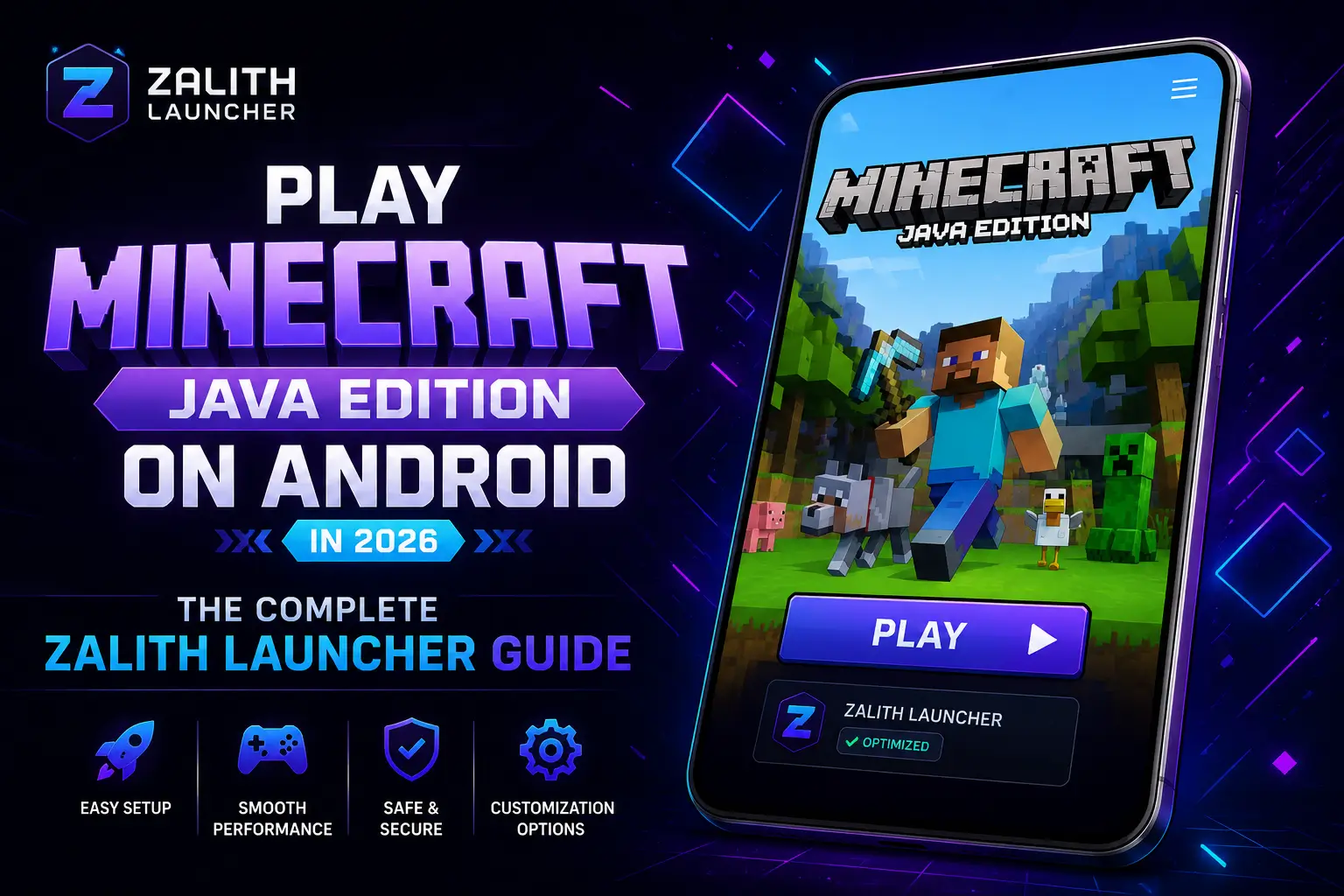
Play Minecraft Java Edition on Android in 2026 — The Complete Zalith Launcher Guide
Discover how Zalith Launcher lets you play full Minecraft Java Edition on Android with mods, shaders and multiplayer support. Step-by-step setup guide for 2026.
For years, Minecraft Java Edition was exclusive to PC players. Android users were limited to Bedrock Edition, which lacks many of the advanced features that make Java Edition so beloved — full mod support, custom shaders, Forge and Fabric, and the massive Java modding community.
That has changed completely.
Zalith Launcher is an open-source Android launcher that brings the full Minecraft Java Edition experience to your phone or tablet. Whether you want to install Forge mods, run Fabric modpacks, play with shaders, or join multiplayer servers, Zalith Launcher makes it possible — without a PC.
This guide covers everything you need to know: what Zalith Launcher is, how to install it, how to set it up for best performance, and how to get mods working on Android in 2026.
Table of Contents
What Is Zalith Launcher?
Zalith Launcher is a free, open-source Minecraft launcher designed specifically for Android devices. It is built on the foundation of PojavLauncher but features a completely modern interface built with Jetpack Compose and Material Design 3.
The launcher allows Android users to:
- Install and run Minecraft Java Edition on any compatible Android device
- Switch between multiple Minecraft versions, including the latest snapshots
- Install and manage Forge and Fabric mod loaders
- Use shaders, resource packs, and modpacks
- Play in multiplayer or LAN mode
- Log in with Microsoft, Mojang (legacy), or Offline accounts
It is one of the most actively maintained Minecraft launchers for Android, with regular updates that bring bug fixes, new features, and support for the latest Minecraft versions.
Why Zalith Launcher Is the Best Choice for Android in 2026
There are a few Android Minecraft launchers available, but Zalith Launcher stands out for several important reasons.
1. Modern Interface
Unlike older launchers that feel cluttered and confusing, Zalith Launcher uses a clean, intuitive layout. Version selection, loader setup, and mod management all follow a logical flow that even beginners can navigate without difficulty.
2. Superior Performance
Zalith Launcher includes optimized rendering pipelines that support Vulkan-based rendering through the Zink Renderer. This translates OpenGL commands into Vulkan, delivering smoother FPS and better stability on modern Android hardware.
3. Full Mod Support
Forge and Fabric both work reliably inside Zalith Launcher. Performance mods like Sodium and Iris run efficiently, and large modpacks can be loaded without the crashes and instability common in other launchers.
4. Regular Updates
The development team actively maintains Zalith Launcher with consistent updates. In 2026, both Zalith Launcher 1 and the newer Zalith Launcher 2 (alpha) continue to receive improvements in rendering, compatibility, and UI refinement.
5. Completely Free and Open Source
There are no hidden charges, subscriptions, or premium tiers. The launcher is free to download and use.
System Requirements
Before installing Zalith Launcher, make sure your Android device meets the following requirements:
| Requirement | Minimum |
|---|---|
| Android Version | Android 8.0 (Oreo) or higher |
| RAM | 2 GB (4 GB recommended for mods) |
| Storage | At least 1 GB free space |
| Processor | ARM64 compatible chipset |
| Internet | Required for login and download |
Devices with Vulkan support will get the best performance, especially with shaders enabled.
How to Download and Install Zalith Launcher (2026)
Follow these steps carefully to get Zalith Launcher installed on your Android device.
Step 1: Enable Unknown Sources
Go to Settings > Security > Install Unknown Apps and allow installations from your browser or file manager.
Step 2: Download the APK
Visit the official Zalith Launcher website at zalithlauncherapk.com and download the latest APK file. Always download from the official source to avoid modified or unsafe versions.
Step 3: Install the APK
Open the downloaded APK file and tap Install. The process takes only a few seconds.
Step 4: Grant Permissions
On first launch, the app will request Storage and Network permissions. These are the only permissions required. Zalith Launcher does not access your contacts, camera, messages, or location.
Setting Up Your Minecraft Account
Zalith Launcher supports three account types.
Microsoft Account (Recommended)
This is the official login method and is required for joining premium servers like Hypixel. Your password is never stored by the launcher — it uses Microsoft’s secure OAuth system.
To log in, open the Account section, select Microsoft Account, and follow the device code verification steps. A browser window will open to Microsoft’s verification page where you enter the code generated by the launcher.
Mojang Account (Legacy)
For older accounts created before Mojang’s 2023 migration to Microsoft. If your account has already been migrated, use the Microsoft login instead.
Offline Mode (Free)
Offline Mode lets you play Minecraft for free without any purchase. You can play single-player worlds and join LAN games. Premium servers that require account verification will not be accessible in Offline Mode.
How to Install Mods on Android Using Zalith Launcher
One of the biggest advantages of Zalith Launcher is its full support for Java Edition mods. Here is how to get mods running on your Android device.
Step 1: Install a Mod Loader
From inside Zalith Launcher, go to your game profile and install either Forge or Fabric depending on the mods you want to use.
- Forge is the traditional mod loader and supports the largest library of mods
- Fabric is lightweight and faster, ideal for performance mods and modern modpacks
- Quilt is a Fabric alternative with improved compatibility for newer mods
Step 2: Download Your Mods
Download mod files (.jar format) from trusted sources like CurseForge or Modrinth. Always check that the mod version matches your Minecraft version and mod loader.
Step 3: Place Mods in the Correct Folder
Copy the mod files into the mods folder of the correct Minecraft profile inside Zalith Launcher. Each profile has its own mods folder, so make sure you are adding mods to the right one.
Step 4: Launch and Test
Start the game and check that your mods load without errors. If a mod fails to load, verify that it is compatible with your current Minecraft version and mod loader version.
How to Enable Shaders for Better Visuals
Shaders dramatically improve how Minecraft looks — adding realistic lighting, shadows, water reflections, and atmospheric effects.
To use shaders in Zalith Launcher:
- Install OptiFine or Iris Shaders (Iris works with Fabric and is recommended for better performance)
- Download a shader pack compatible with your Minecraft version
- Open Minecraft, go to Options > Video Settings > Shaders
- Select your shader pack from the list
For best results on mid-range Android devices, use lightweight shaders like Complementary Reimagined or BSL Shaders at low-to-medium settings.
Performance Tips for Smooth Gameplay
If you experience lag or low FPS, these settings will help.
Reduce Render Distance — Set render distance to 6–8 chunks for most Android devices. Higher values increase RAM and GPU load significantly.
Enable Zink Renderer — In Zalith Launcher settings, switch the renderer to Zink if your device supports Vulkan. This can improve FPS and stability on compatible devices.
Install Sodium — For Fabric users, Sodium is a performance optimization mod that significantly increases FPS by improving rendering efficiency.
Close Background Apps — Free up RAM before launching Minecraft to reduce stuttering and lag spikes.
Disable V-Sync Temporarily — Disabling V-Sync can increase frame rates on slower devices, though it may cause minor screen tearing.
Allocate More RAM — In Zalith Launcher settings, increase the allocated RAM to at least 2 GB for vanilla play and 3–4 GB for modded gameplay.
Common Errors and How to Fix Them
App Not Installed Error This usually means you have an old version of Zalith Launcher or a conflicting launcher installed. Remove any previous versions and try installing again.
Game Crashes on Launch (Exit Code 1) This is often caused by a mod incompatibility or wrong Java version. Minecraft 1.18 and above require Java 17. Versions 1.12.2 and older require Java 8.
Mods Not Loading Check that your mod file is placed in the correct mods folder and that it is compatible with your Minecraft version and mod loader. Mismatched versions are the most common cause of mods failing to load.
Black Screen After Loading Try changing the renderer in Settings > Video. If you are using MobileGlues, try switching to Zink or vice versa.
Microsoft Login Not Working Check your internet connection and disable any active VPN. Some VPNs block Microsoft authentication servers. Try switching to a different Wi-Fi network.
Zalith Launcher 1 vs Zalith Launcher 2 — Which Should You Use?
As of 2026, two major versions of Zalith Launcher are available.
Zalith Launcher 1 is the stable, production-ready version. It is fast, lightweight, and reliable. It is the best choice for most users, especially those who want a dependable setup without dealing with alpha-stage issues.
Zalith Launcher 2 is a next-generation redesign currently in alpha. It introduces an improved rendering system, better FPS optimization, a refined UI, and superior compatibility with modern Android hardware. If you want to test cutting-edge features and do not mind occasional bugs, Zalith 2 is worth trying.
For everyday use and modded gameplay, Zalith Launcher 1 is the recommended choice until Zalith 2 reaches a stable release.
Final Thoughts
Zalith Launcher has made it genuinely possible to enjoy the full Minecraft Java Edition experience on Android. With mod support, shader compatibility, multiplayer access, and a polished modern interface, it delivers something that would have seemed impossible a few years ago.
Whether you are a casual player who just wants to explore vanilla worlds on the go, or an advanced player who wants to run large Forge modpacks and custom shaders on your phone, Zalith Launcher provides the tools to make it happen.
Visit zalithlauncherapk.com to download the latest version and get started today.